Hi, my name is John and I work for the Dickinson Historical Society in Dickinson, Texas. I really wanted to solve the problem of designing pages and laying them out in Omeka S, so I got to work on a drag-and-drop page builder. I’m sharing it here in case it helps other small museums, historical societies, and archives, and I’d welcome feedback.
Here is the link because I really don’t know how to share it.
What it does
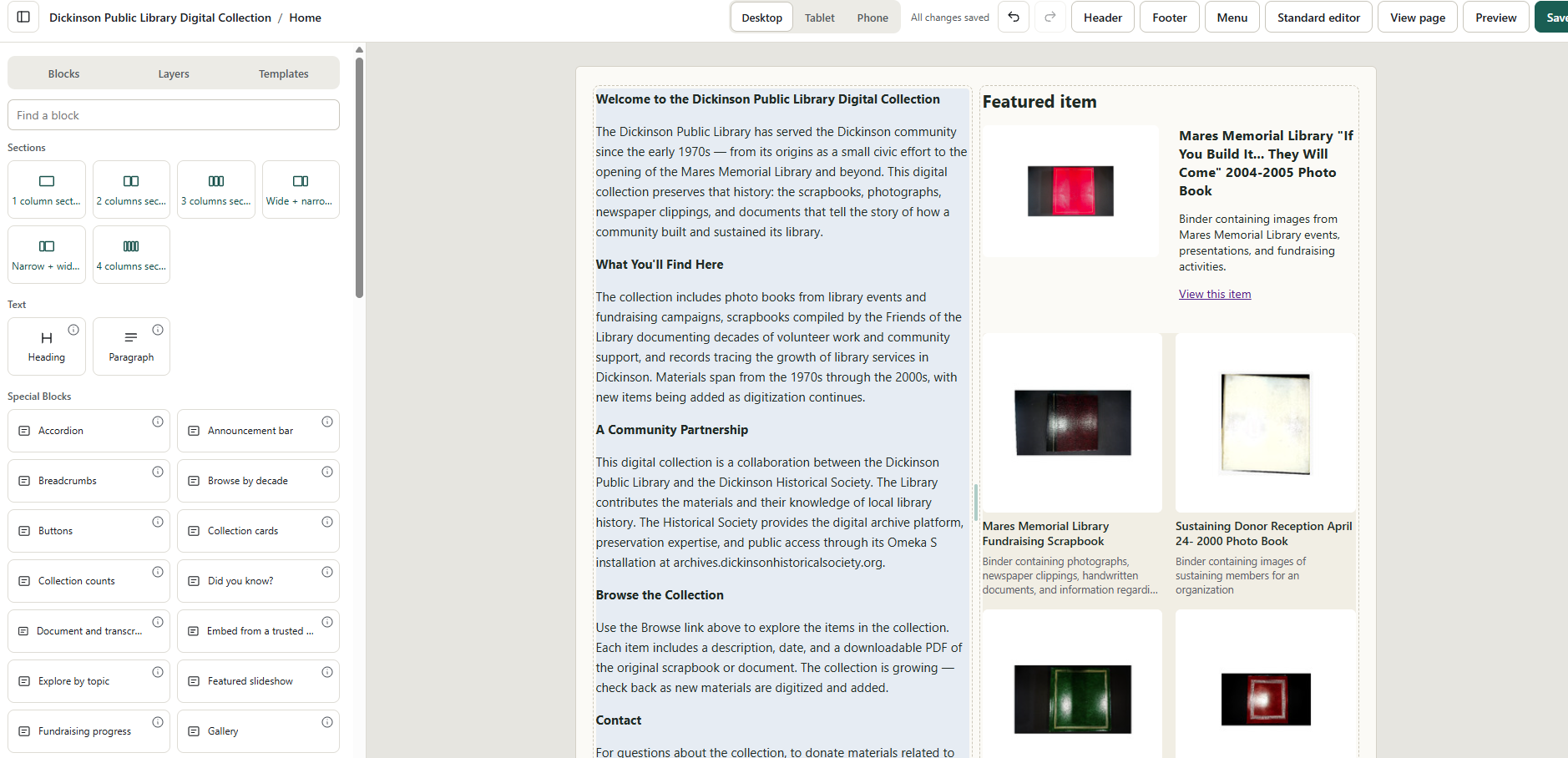
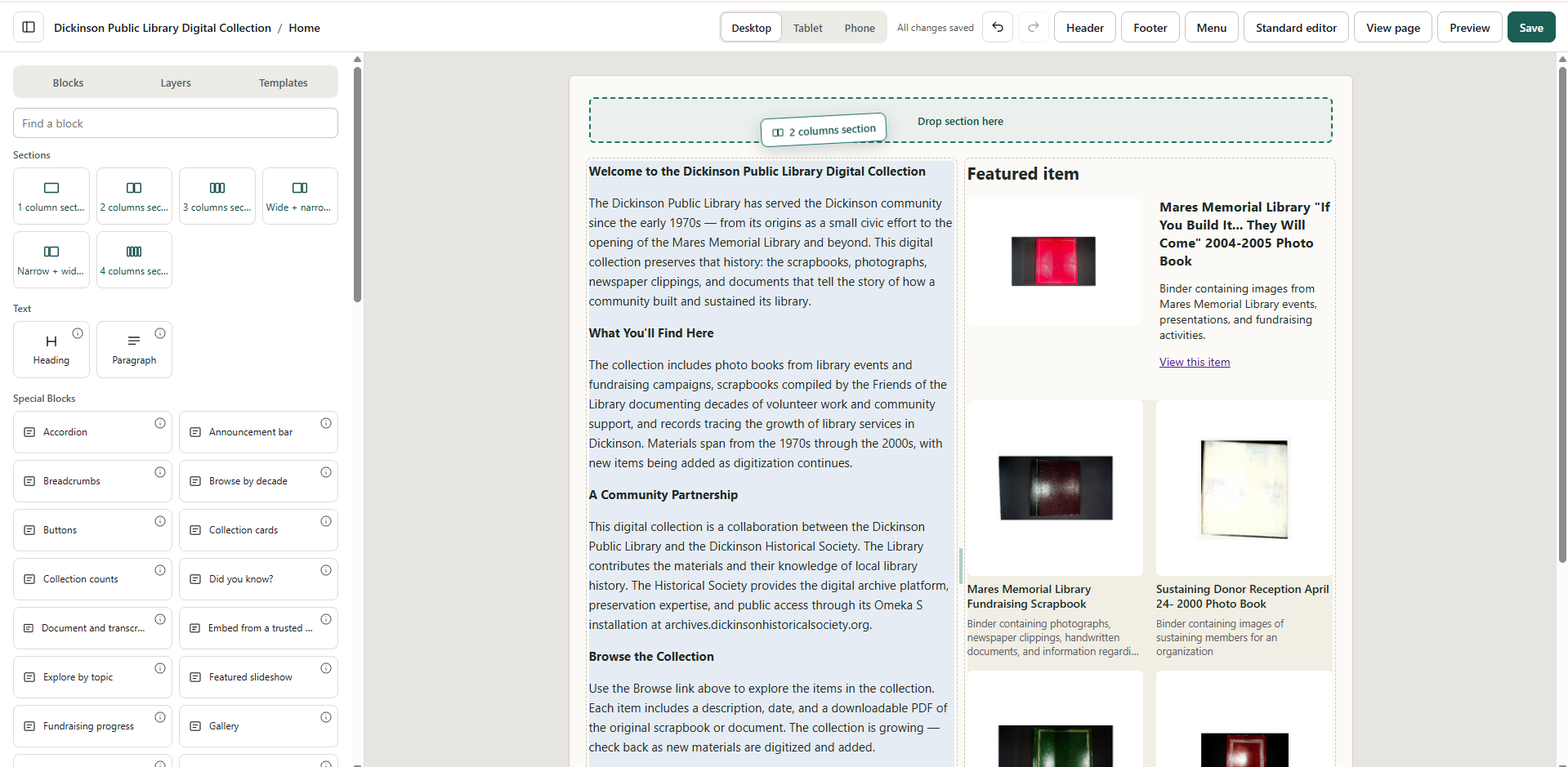
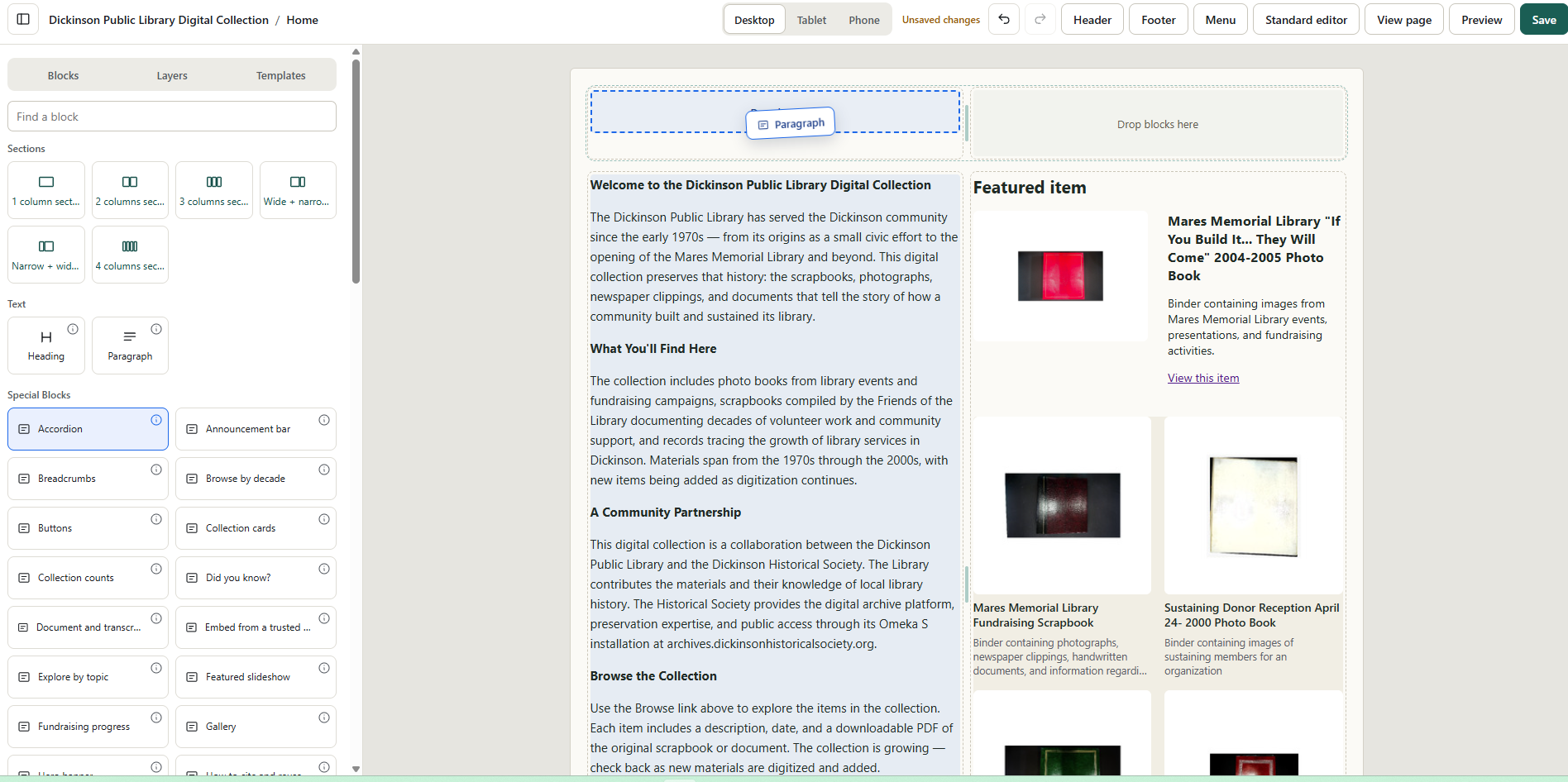
Visual Page Builder adds an “Open visual editor” button to every site page. The page opens full screen in an editor where you can:
- Build with sections and columns. Drag the bar between columns to resize them.
- Drag blocks into place, or click a block in the sidebar to add it.
- Type text right on the page, and change any block’s settings in the sidebar.
- See live previews of your real items. Every block also has an ⓘ button that explains what it does in plain language.
- Undo, redo, and save with Ctrl+Z and Ctrl+S.
- Start from 30 page templates (home, browse, story/exhibit, about, contact, events and support) or build from scratch.
It also includes:
-
40 extra blocks (“Special Blocks”) for historical societies:
- random and recent items, item of the day, on this day
- collection cards and counts, browse by decade, subjects list, item table, gallery with zoom, slideshow
- then-and-now photo slider, oral history with transcript, document with transcription, “who’s who in this photo” (numbered markers on people), milestones timeline
- visit info, open now, upcoming events (with calendar feeds), announcement bar, fundraising progress, newsletter sign-up
- people and partners, embeds from trusted sites, share buttons, and how to cite
Item blocks can pull from the current site, chosen sites, or all sites.
-
Menu builder: arrange the site menu and pick from 15 menu styles, with a preview.
-
Header and footer builder: build headers and footers in the same editor, from 10 templates.
-
Visit info, entered once: a section in each site’s settings for hours, address, and closed dates, used by several blocks.
How it works
- Pages are saved in Omeka’s own Grid layout. Sections are stored as block groups, so they’re ordinary Omeka pages.
- If you remove the module, regular blocks keep showing (stacked instead of in columns) and Special Blocks hide until it’s back. Their settings are kept.
- Every Special Block also works in Omeka’s standard page editor.
- Other modules can give their blocks settings forms and previews in the visual editor by describing their fields in a small schema. The README explains how.
- No build step and no outside services. The editor is plain JavaScript, and nothing loads fonts or scripts from other sites.
The Companion Theme for Visual Page Builder
The module works with any theme. The companion theme is optional, but it’s made to show pages exactly as you build them. It’s also the theme that draws the 15 menu styles and your built header and footer. Its settings cover logo, colors, fonts, page width, search box, footer text, and social links.
Requirements
- Omeka S 4.1 or later. I’ve tested it on 4.1.1 and 4.2.1.
- PHP 7.4 or later. I’ve tested it on PHP 8.3.
- For calendar feeds in the Upcoming events block, the server needs to be able to reach the calendar’s address.
- I recommend keeping Omeka’s “Use HTMLPurifier” setting on.
- Set your time zone under Settings › General, since several blocks depend on “today”.
Installing
The download has both pieces plus a plain-text guide:
- Upload the
VisualPageBuilderfolder tomodules/, then click Install under Modules. - Optionally, upload
visual-page-builder-companiontothemes/and choose it under your site’s Theme.
Back up your database first, as with any module.
Status
This is the first public release (1.0). It has an automated test suite that runs against real Omeka installs, but it hasn’t had wide use yet. Please try it on a test site first, and let me know what works, what doesn’t, and what blocks you’d find useful.
Download: https://drive.google.com/file/d/107tUSM5HhhcTzciVy_rb2gbni_Itskhf/view?usp=drive_link
License: GPL-2.0-or-later (GNU General Public License, version 2 or later)
Thanks,
John Dougan
Dickinson Historical Society